
How to Create Strong Passwords You Won't Forget
A practical guide to generating passwords that are genuinely hard to crack, plus how to keep track of them safely.
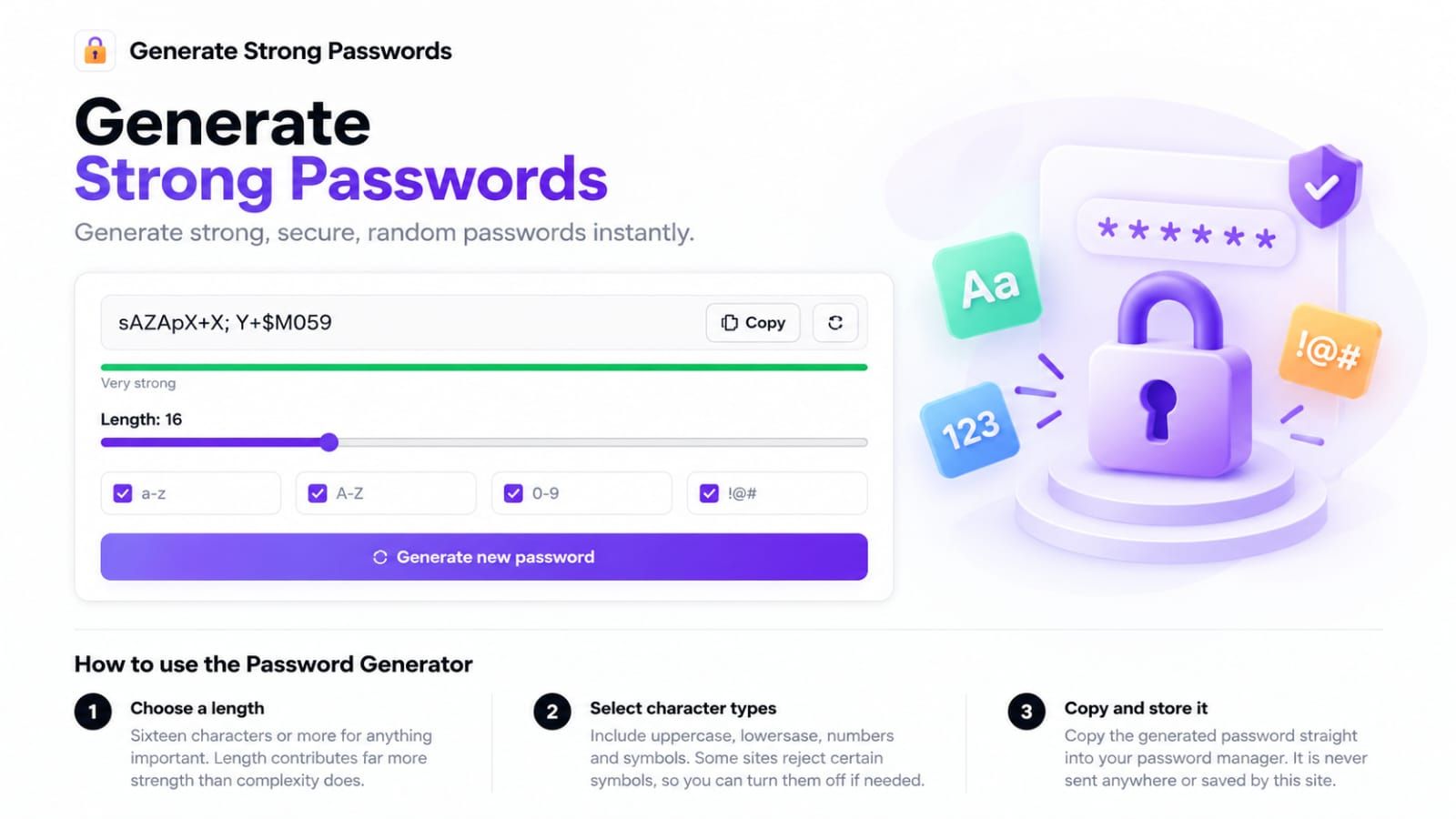
Table of Contents
Create a different random password for each account, save it securely and protect the account with additional authentication where offered. A generator supplies a string; it cannot protect a compromised device or stop someone being tricked into entering it on a phishing page.
Use the password generator
- Open Password Generator. Keep the generated password private rather than pasting an existing password into a support message.
- Select a length that the destination accepts. The default is 16 characters; use a longer value if the service supports it.
- Choose the allowed character groups. Some sites reject particular symbols, so match the destination's rules before generating.
- Generate a new value, copy it and save it in your password manager for the correct account and domain.
- Complete the password change and confirm that the saved value works before closing the session.
Do not copy any example password from an article. An example is public, regardless of how complicated it looks.
Length, randomness and reuse
Length helps when characters are chosen unpredictably. A long repeated pattern or a familiar phrase with a year appended is not equivalent to a random string. Reusing a password exposes other accounts if one service loses it. The on-screen strength indicator is a simple character/length heuristic; it is not a breach-database lookup or a guarantee of resistance to attack.
Store and recover access
A password manager can store distinct values so you do not have to memorize each one. Follow its recovery instructions and keep recovery material somewhere appropriate for your circumstances. If an account offers a passkey or additional authentication, review those options too. Never send passwords, one-time codes or recovery keys to someone claiming to be support.
Troubleshooting
If the destination rejects a generated value, check length limits and allowed characters, then generate again. If copying fails, your browser may restrict clipboard access; copy the displayed value carefully and verify it in the destination's permitted workflow. Avoid exposing the password in a screenshot, shared screen or clipboard history.
Privacy and limits
The generator uses the browser's cryptographic random API and does not send generated values to TooleraAI. Local generation does not protect against malicious extensions, screen recording or a compromised device. Use a trusted browser, and do not mistake a green strength indicator for account security. For a suspected compromise, follow the affected service's recovery process and replace reused credentials.